Managing images and media across multiple projects is a common challenge. Where do assets live? How do you find the right image? How do you upload new ones without leaving your editing workflow?
SiteBuilder’s new Remote Content Assets feature solves these problems with a unified approach to asset management.
The Problem with Scattered Assets
Most teams end up with images spread across multiple locations: some in the repository, some in a shared drive, some in a CMS media library. When you’re editing content, finding the right asset URL becomes a scavenger hunt.
Even worse, uploading new images typically means switching context — open another tool, upload, copy the URL, paste it back. That friction adds up.
Remote Asset Manifests
SiteBuilder now supports remote asset manifests — JSON files hosted externally that list all available assets for a project.
How it works:
- Configure a manifest URL in your project settings
- The manifest lists asset URLs, filenames, and metadata
- SiteBuilder fetches and displays these assets in a browser panel
This means your asset library can live anywhere — an S3 bucket, a CDN, your company’s media server — and SiteBuilder surfaces them right where you’re editing.
The agent also gains access to these assets through new tools:
list_remote_content_asset_urls— returns all available asset URLsget_remote_asset_info— fetches metadata for a specific assetsearch_remote_content_asset_urls— regex-powered filtering
When you ask the agent to “add a hero image,” it can browse your asset library and suggest appropriate options.
Asset Browser UI
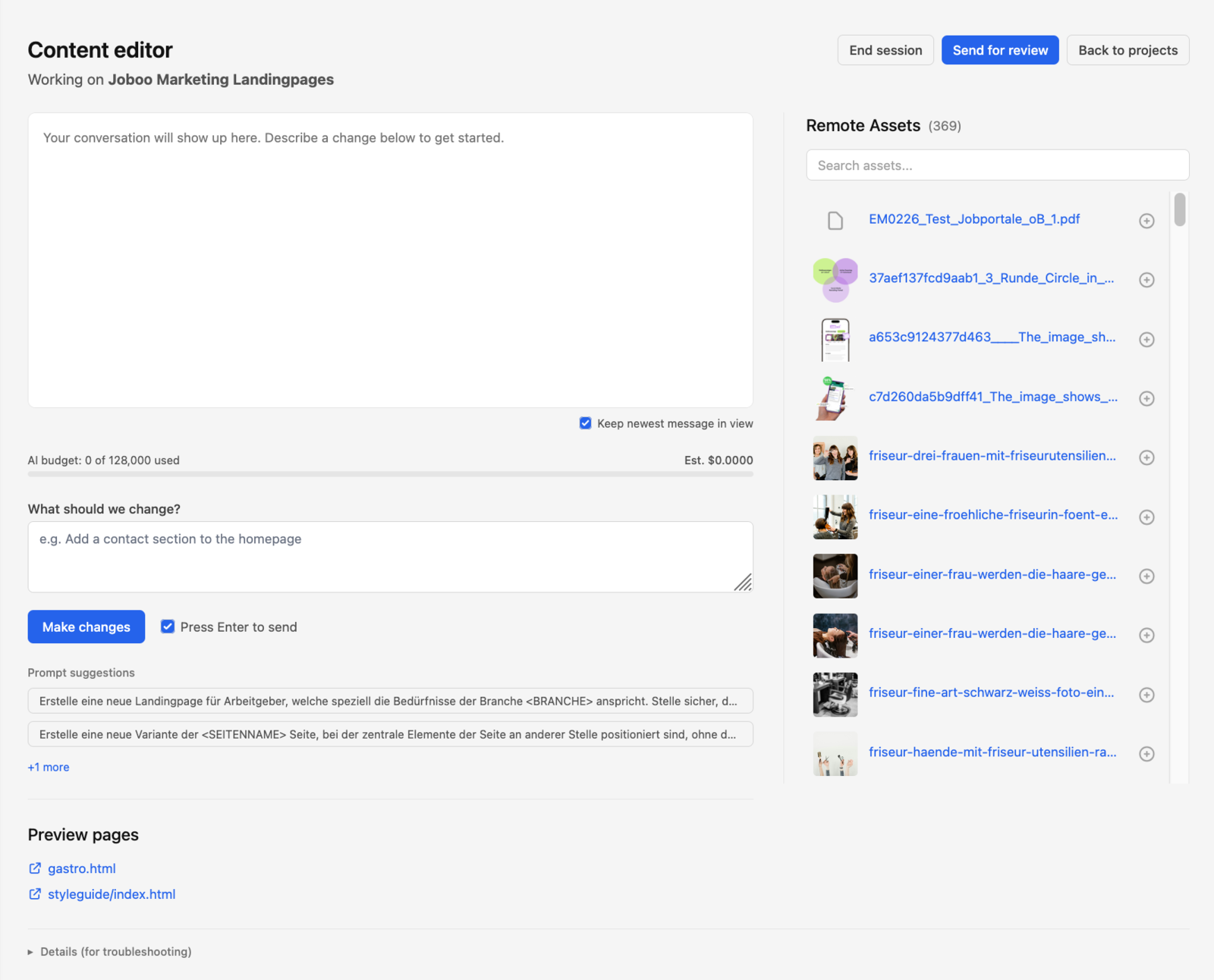
The editing interface now includes a collapsible asset browser panel. When expanded, you see:
- Image previews — Visual thumbnails so you can see what you’re selecting
- Search filter — Type to filter by filename or path
- Click-to-insert — Select an asset to insert its URL at your cursor position
The panel stays out of the way when collapsed, but provides quick access when you need to reference an image.
On wider screens, the asset browser and upload panel display side-by-side for a more efficient workflow.
S3 Asset Upload
Need a new image that isn’t in your library? Upload directly to S3 without leaving SiteBuilder.
Features:
- Drag-and-drop — Drop images directly into the upload area
- IAM role assumption — Secure access through AWS role-based permissions
- Automatic manifest update — New uploads appear in your asset browser immediately
The upload flow handles the complexity of S3 authentication while keeping the user experience simple. Drop a file, it uploads, and it’s ready to use.
Setting Up Remote Assets
To enable remote content assets for a project:
- Create a manifest file — A JSON file listing your assets with URLs and optional metadata
- Host it somewhere accessible — S3 bucket, CDN, any HTTPS endpoint
- Configure the manifest URL — In project settings, add the URL to your manifest
- Optionally configure S3 upload — Add bucket details and IAM role ARN for upload support
The manifest format is straightforward:
{
  "assets": [
    {
      "url": "https://cdn.example.com/images/hero.jpg",
      "filename": "hero.jpg",
      "type": "image/jpeg"
    }
  ]
}
What’s Next
Remote content assets lay the groundwork for richer media management:
- Multiple manifest sources per project
- Asset tagging and categorization
- Automatic image optimization on upload
- Integration with popular DAM platforms